 With the arrival of FireFox 3 (and its record-breaking amount of downloads in its first 24h) more and more of us web architects and web developers are getting rid of their beloved FireFox 2 installation and are moving all their bookmarks, themes and extensions to version 3 of the popular browser. And rightfully so, version 3 is faster, much more stable and its updated Gecko engine is displaying your website creations in the best possible way… or is it?
I came across a couple of odd bits when developing a website – it seems like Firefox 3 is displaying a floated element’s width of 100% correctly, whereas FF2 would not fully acknoledge the width unless the element was previously set to “clear: both;” (or something along those lines, unfortunately I am still relatively new to the CSS cut-up world.
So we decided to install FireFox 2 again on the design-machines next to an existing FireFox 3 installation without causing any issues with the extensions or other settings between the browsers. I got it to work pretty much instantly on the first go, but since colleagues and friends were asking about how to get FireFox 2 to work with FireFox 3, here is a quick step-by-step guide after the break.
.
Step 1) Install FireFox 2 Portable
Quickest way to get FireFox 2 to work without any problems is if you grab hold of FireFox 2 portable. Get it from PortableApps.com (direct link to FF2Portable) and install the application, ideally into a separate folder (such as ‘C:\Program Files\FireFoxPortable’)

.
Step 2) Enable FireFox 2 to run next to FireFox 3
Firefox 2 Portable will not allow you to open another instance of the browser by default. What we need to do now is to make sure FireFox 2 Portable allows us to still use FireFox 3. Download the file ‘FirefoxPortable.ini’ below and put it into your install directory:
Please download the file here: Firefoxportable.ini (644 bytes)
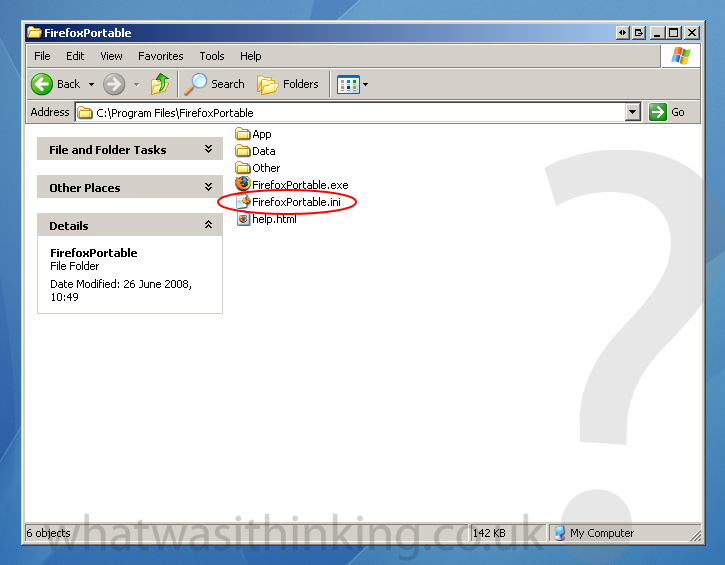
.
Step 3) Install all your extensions for FireFox 2 Portable
Lastly, all you need to do is to get your favourite development addons onto FireFox 2 Portable. This works in the same way as you would install any addon for FireFox (1, 2 or 3), and to ease your search, here is my recommended list:
- FireBug – Probably THE most useful addon of the lot. You will need to install a previous version, which you can find here
- FireFox Accessibility Extension – this tool aids developers in testing websites to accessibility standards and under conditions such as not having CSS or scripts enabled. Furthermore, it allows users to test their website according to standards such as Section 508 or WAI. Download the addon from here
- Fangs – A very very useful and powerful screen reader emulator. You can get the addon from here
- Web Developer – another nice toolbox for testing your website with a number of tools, cookies, image and source options. Download the addon from here
.
Well, there you have it, FireFox 2 running alongside FireFox 3 as a standalone without any problems. 🙂
[Update]: Updated FireFox Portable link to latest version, thanks for starpause for the link!

James
July 2, 2008Hi Alex,
Cheers for that, very helpful reference 🙂
SandrinaChan
July 9, 2008You sir are a life-saver!
Thank you for the guide xxx
Craig Farrall
July 15, 2008Very useful, good post!
Thomas
July 26, 2008Thanks for the post, you just sorted out a massive headache for my guys 😉
Naman Jain
September 10, 2008You have shared a good knowledge of web designing/development, thanks for posting this blog.
Alex
September 25, 2008This worked fine on Windows XP, very good. Now moved to Vista and getting an ‘Error opening file for writing’… just after selecting the destination folder when running the installer. Any suggestions would be welcome!
Alexander Rehm
September 25, 2008Hiya,
I’ve been using Vista for ages now and didn’t have a problem with installing FF2 portable myself.
What I can think about on top of my head is:
– if you have a FF portable folder under C:\ already make sure you delete it. If you are installing FF2 on a memory stick make sure you delete any previous versions
– you may need to have admin permissions to install onto the C:\ drive (right click the app and “run as administrator”)
– If you are using a virus scanner such as AVG 8 you may need to temporarily disable it / exit it as AVG 8 can lock the file and stop it from writing to a directory
Hope this helps mate 🙂
Sal
October 9, 2008As a designer, I prefer to use Internet Explorer 7. I use Firefox only for additional work, e.g. when I need to check some bugs, etc.
glany
December 11, 2008hi.. it worked for me. thank you.. its superb
Sal (again)
December 27, 2008Thanks for information provided. But frankly speaking I’m not in a hurry with the new version of Firefox installation.
Alexander Rehm
December 27, 2008You mean other than the obvious security fixes and CSS3 capabilities? 😉
snowdog
January 6, 2009That was really useful. Thanks a lot.
starpause
February 6, 2009ff 2.0.0.20 is out now, you might want to update your direct link to download ff portable:
http://sourceforge.net/project/showfiles.php?group_id=151265&package_id=283201
thanks for the article!
Alexander Rehm
February 6, 2009Cheers buddy, very much appreciated, updated the link 🙂
citadella
February 11, 2009thanx a lot!..i had been finding ways to have both version of firefox…ur solution is great!
Mich Joanisse
March 23, 2009Thank you for this, have been searching for quite some time, very useful tool for developers considering firefox2.0 > 3.0 has some quite drastic differences.
Cheers
Sean
April 1, 2009Great article! Thanks for explaining how to launch them at the same time.
This helped me debug another developer’s code. It’s annoying to see the difference, but FF2 vs FF3 is much closer than any other browser before (*cough* … IE6 … IE7).
Saratoga Web Design
June 23, 2009Can’t this be accomplished by extensions?
Alex
June 24, 2009No, due to the fact that FF2 uses a different version of the Gecko engine than FF3 / FF3.5 do. For accurate web testing you will want to keep that in mind.
Saratoga Web Design
June 25, 2009It should be possible. People have embedded the IE and Safari rendering engines in tabs before. Shouldn’t be that hard to embed the old Gecko engine.
Alex
June 26, 2009As it stands there isn’t a plugin that would enable you to use the older Gecko engine. If you know how to do it then by all means send me the plugin, until then you’re best off using FF2 standalone next to FF3/3.5 for proper web testing 🙂